Using SVGs
SVGs are right at home in vector-based design apps where you can resize and color with ease.
Make sure you already:
Downloaded the Font Awesome Desktop files. Located the .svgfiles for the icons you plan to use in the/svgs/or/svgs-fullfolder.
You can drop any one of our SVG files into vector-friendly design apps like Figma, Sketch, or Adobe Illustrator, just to name a few. Create a new file or open an existing one, and drag the SVG into the artboard where you would like it placed.
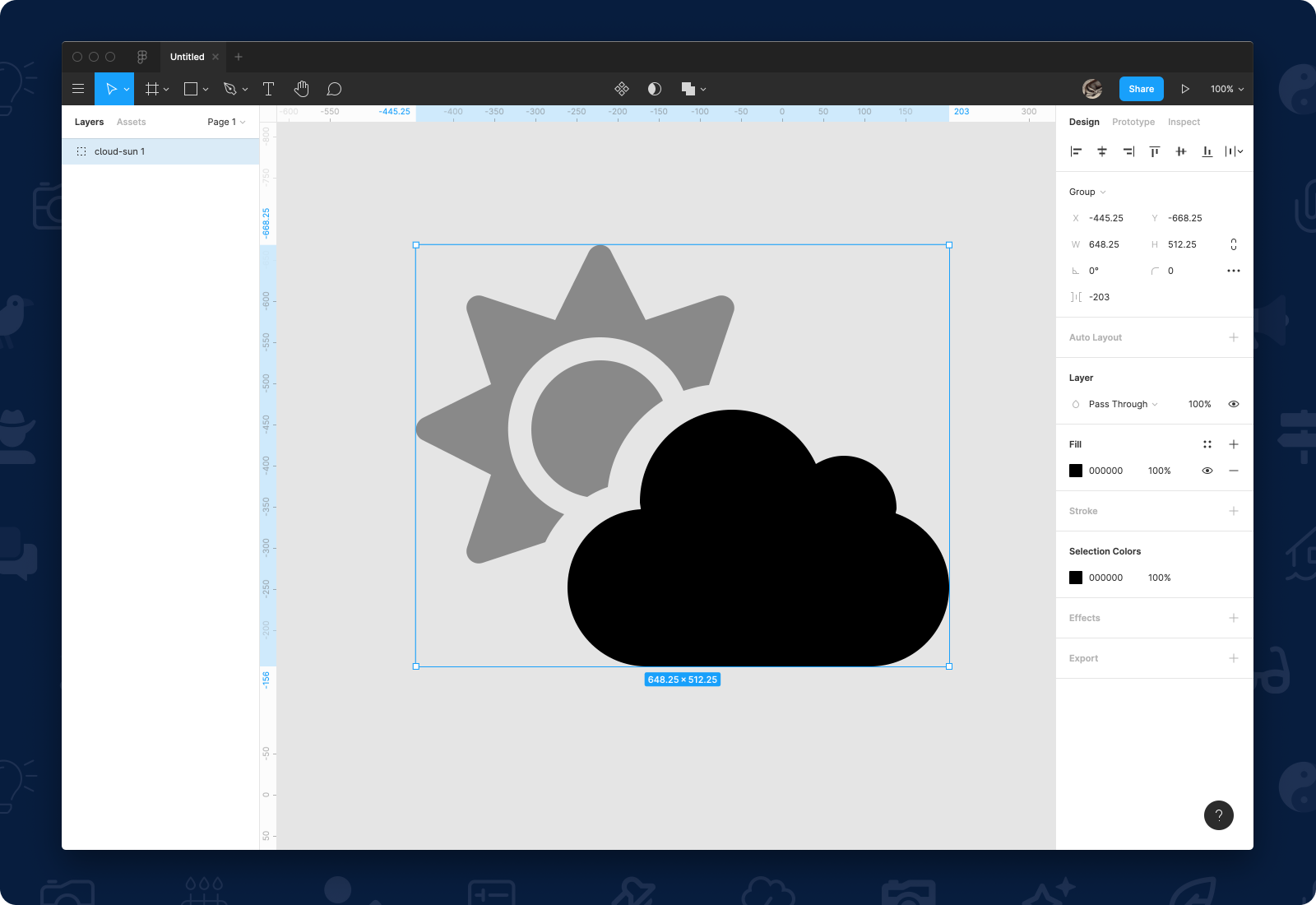 A duotone icon's .svg file open in Figma
Then use the app's tools for resizing and coloring to get it just right in your design.
Using Kit Custom Icons as SVGs
If you downloaded a Kit with custom icons, the download will include the processed SVG files derived from your original SVGs. You can use these just like you would any of the other Font Awesome icons.
When you add an SVG file, you are making direct edits to the SVG, so we recommend saving any changes you make in a new file and keeping files organized for future use.
SVG Formats
Font Awesome provides two different sets of SVG assets:
| Assets | Folder | What's the difference? | Impact on Rendering |
|---|---|---|---|
| SVGs | /svgs |
SVG viewbox width is cropped to the edges of the interior symbol. The viewbox has a standard height based on the Icon Canvas. |
Icons will only take up as much space as their dimensions need. |
| Full SVGs | /svgs-full |
SVG viewbox width and height are set to a standard square based on the Icon Canvas |
Icons will be rendered at a consistent width with surrounding whitespace. |
Duotones and SVG
Just like any other style of Font Awesome icons, you can drag and drop a Duotone SVG file into your SVG-friendly application, and the duotone icon will appear. By default, the secondary layer will be set to 40% opacity and the icon will be set to a single color, but you can change that.
Changing Layer Colors and Opacity
To change the color or opacity in a Duotone icon, select and manipulate the opacity and color of individual layers in the SVG you opened. Here are a few examples in action.
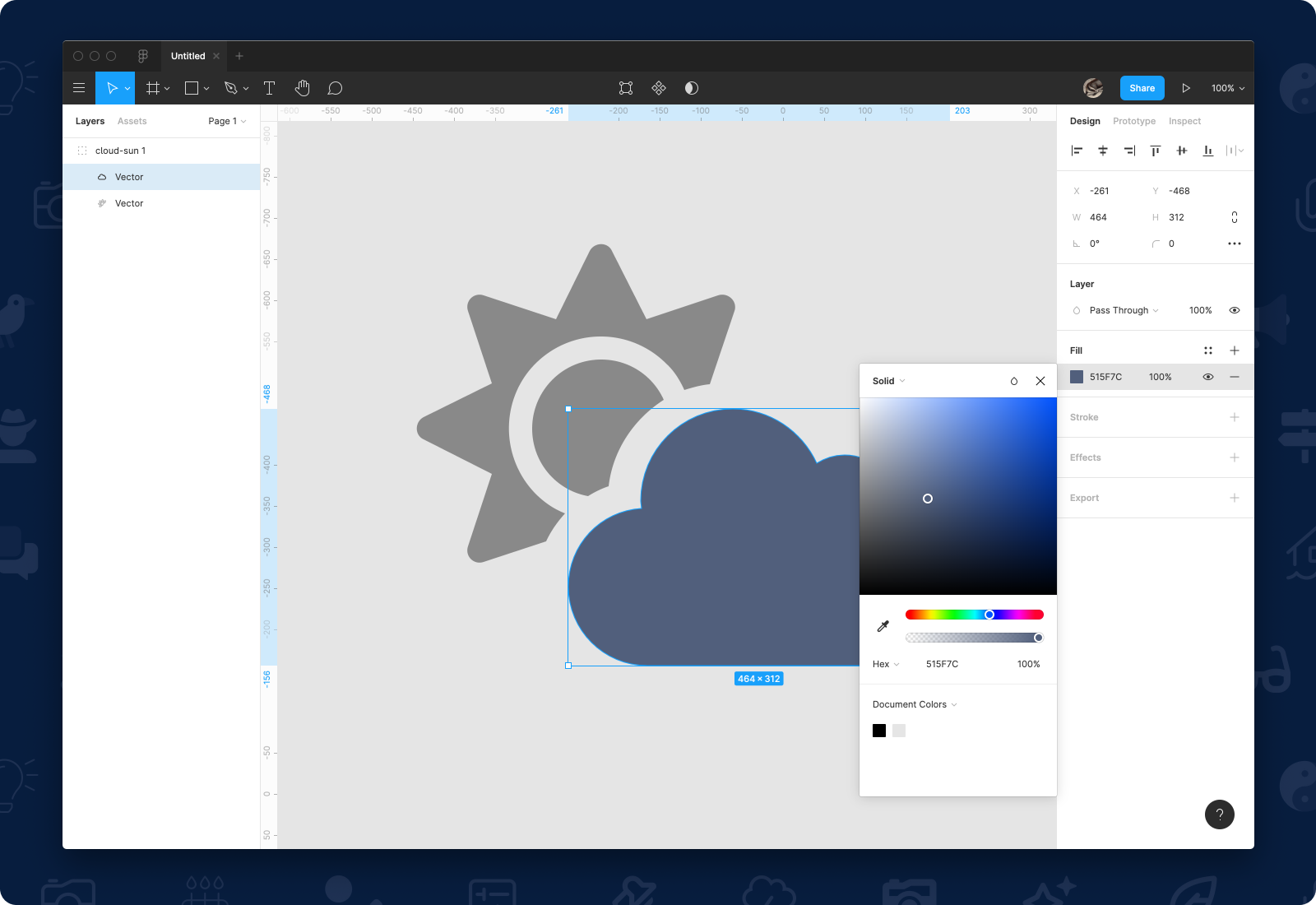 A duotone icon with a new color applied to the primary layer in Figma
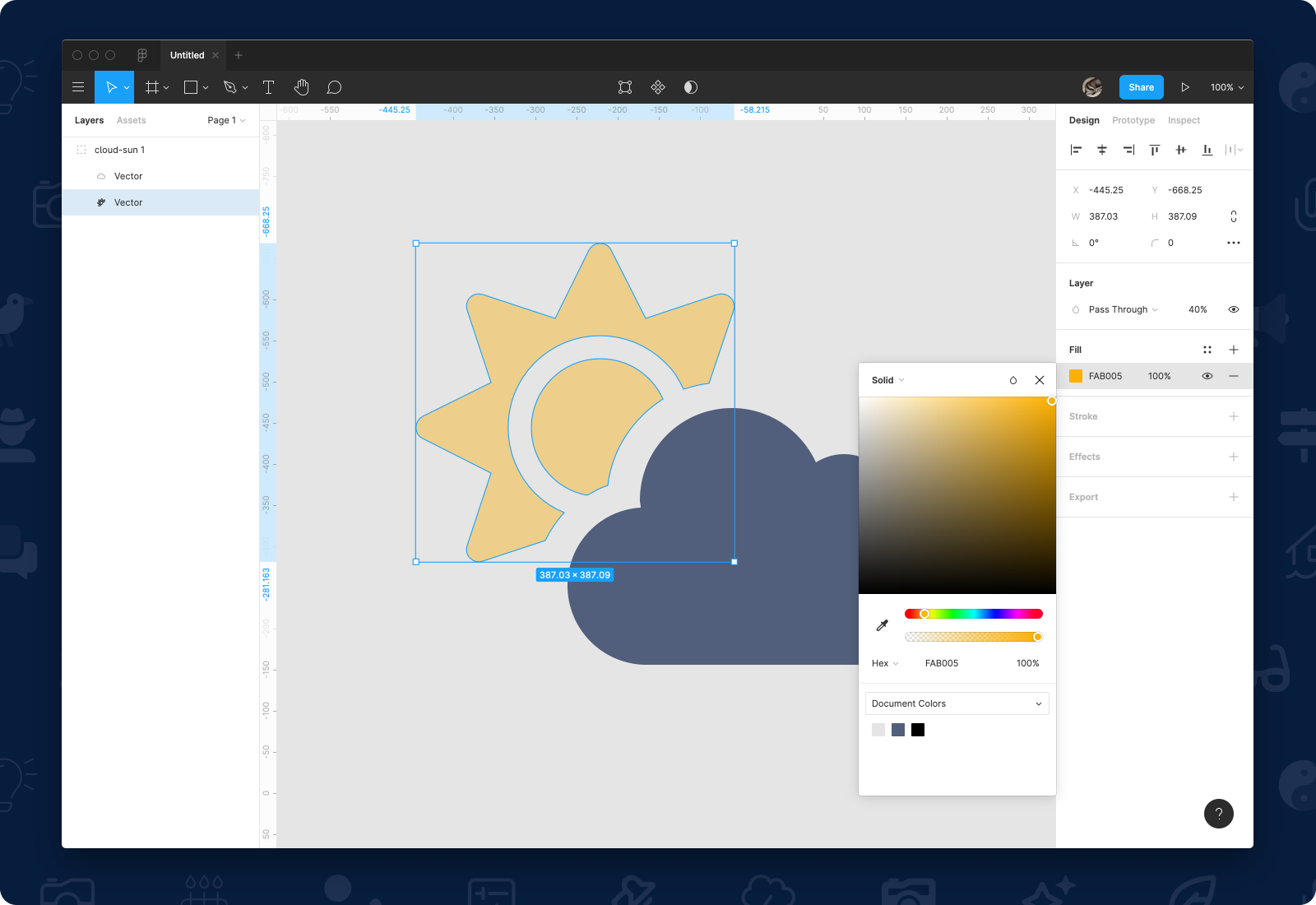 A duotone icon with a new color applied to the secondary layer in Figma
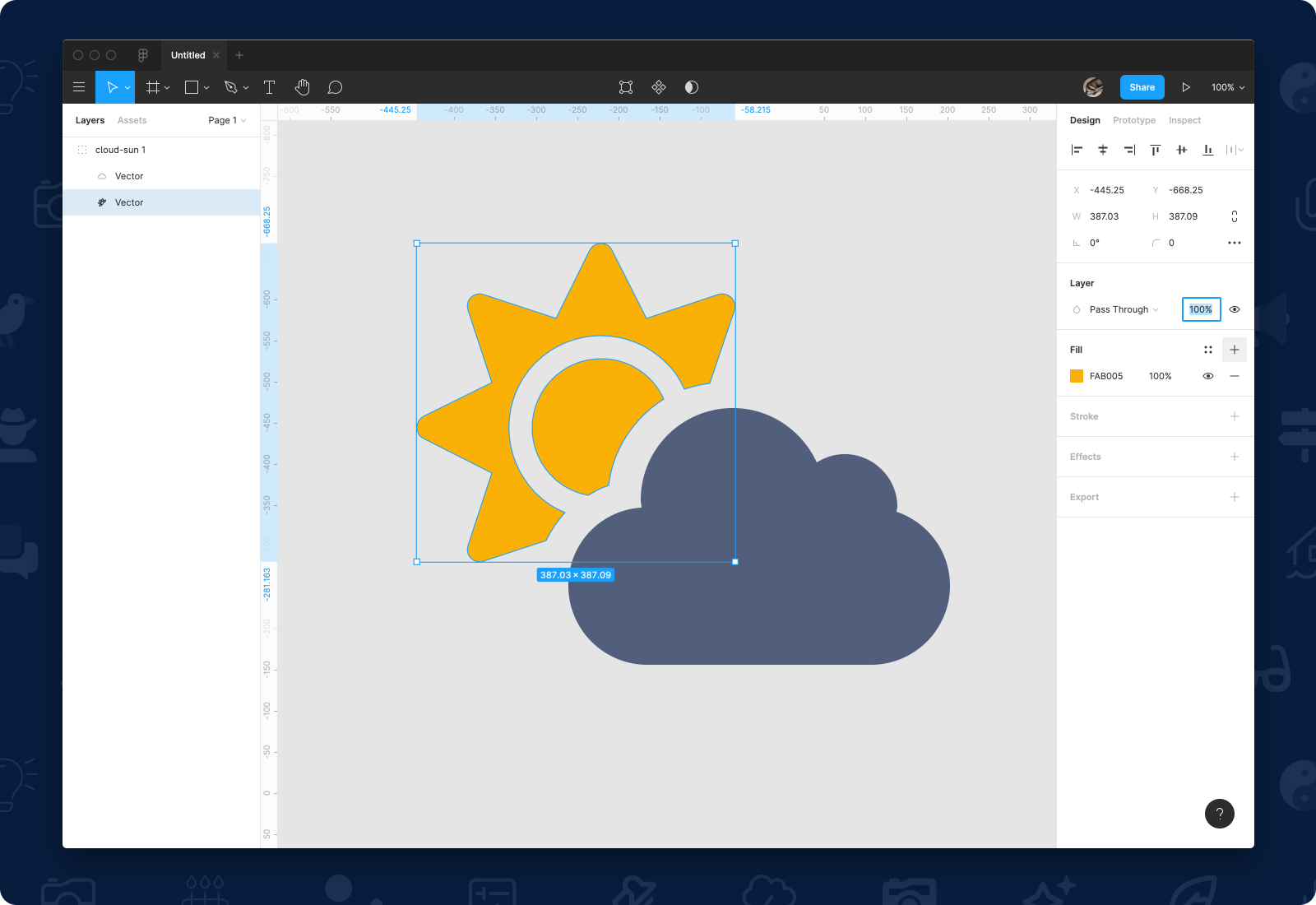 Setting opacity of a duotone layer to by adjusting the Pass Through in Figma