Sharing Your Creation
Want to share your work of art with the world?
Creating a share
- Build an awesome icon with the Icon Wizard.
- Click the Share icon in the top-right.
- Post your icon to Bluesky, Twitter/X, or LinkedIn. Or copy the link and share it wherever!
Creating a share requires an active subscription. Once it's created, anyone can open the link, whether they subscribe or not.
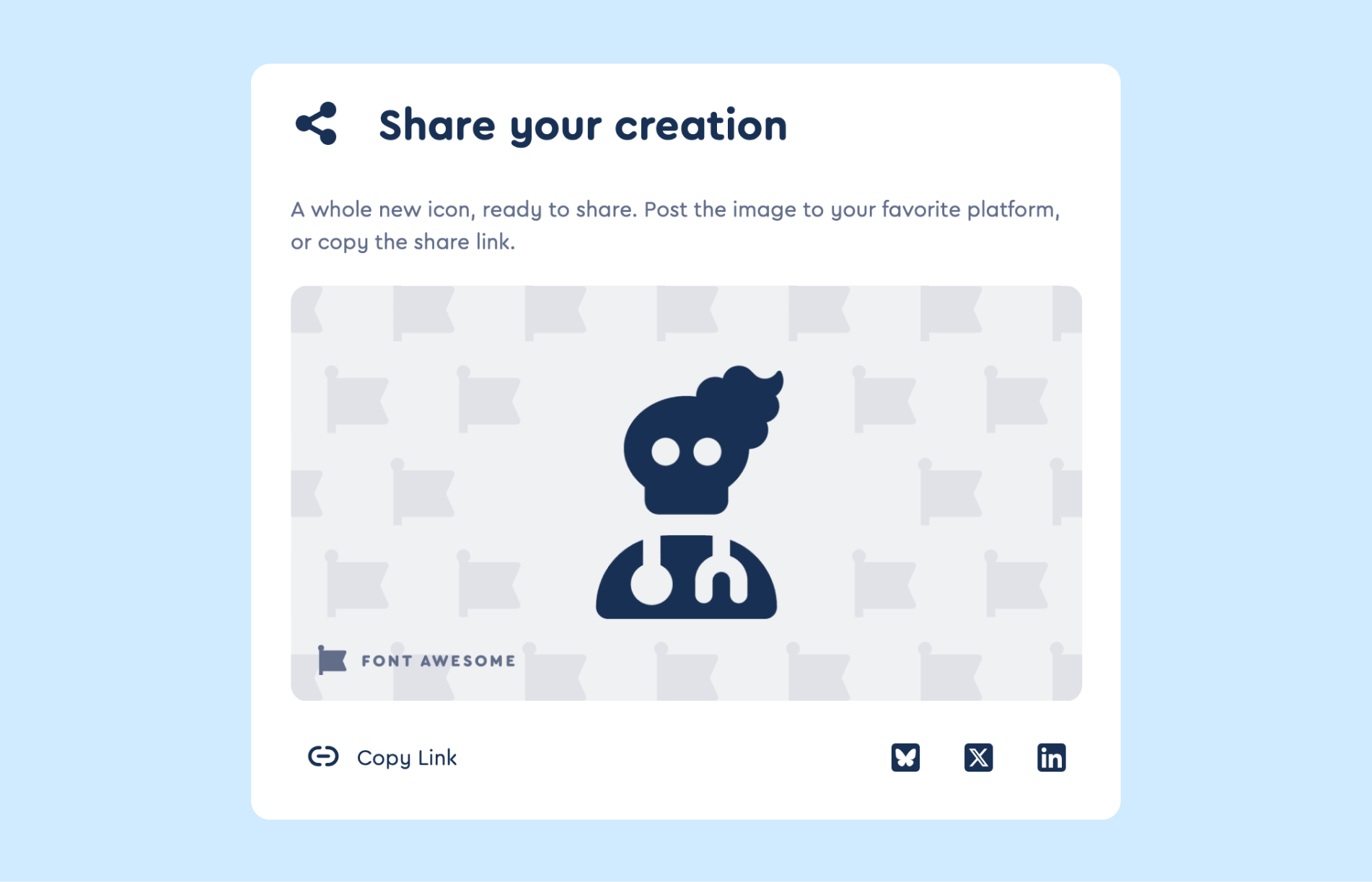 The share modal showing the rendered social card, the action button row, and the share URL.
The share URL
Share URLs use the shape:
https://fontawesome.com/icons/wizard/{token}/share
The token is a 22-character URL-safe hash of your composition's width, height, and SVG path. That means:
- Identical compositions get the same URL. If you and another subscriber both build the same icon, you'll both see the same share link.
- Different compositions get different URLs. Even a one-pixel shift in a layer's position changes the path and therefore the token.
- Share URLs are permanent. Once created, they don't expire.
Because the token comes from the icon's content rather than your account, the URL itself gives away nothing about who made it. And since identical compositions map to the same token, sharing the same icon twice reuses the existing share instead of creating a duplicate.
Troubleshooting
My link says "This share is no longer available." That means we couldn't find the icon behind the link. Usually the URL got mangled somewhere along the way, or something hiccuped when the share was first created. Just head back to the Icon Wizard and share it again to get a fresh link.
I'm a subscriber, but clicking Share still shows an upgrade prompt. Make sure you're signed in to the account that has your subscription, then refresh the page and try again.
The preview image is taking forever to load. The very first time anyone opens a brand-new share, we render the image on the spot, which takes a moment. After that it's cached, so every visit from then on loads instantly, yours or anyone else's.
I pressed Escape, but the Icon Wizard is still open. That's on purpose! Escape closes whatever's on top first, so it tucks away the share window and leaves the Icon Wizard right where you left it. Press Escape again to close the Wizard too.